Not too long ago, making a professional-looking video required a multi-thousand-dollar gear setup: a DSLR camera, studio lighting, shotgun mics, and a computer with enough processing power to sound like a jet engine during rendering.
Today? You can storyboard, script, voice, and generate a studio-grade video while sitting in your sweatpants with a cup of coffee.
Whether you want to build a faceless YouTube channel, level up your brand’s social media marketing, or just experiment with creative storytelling, AI video generation is no longer an experiment—it is an accessible creative playground.
Here is the exact step-by-step workflow to turn a simple idea into an engaging AI-powered video without getting lost in technical jargon.
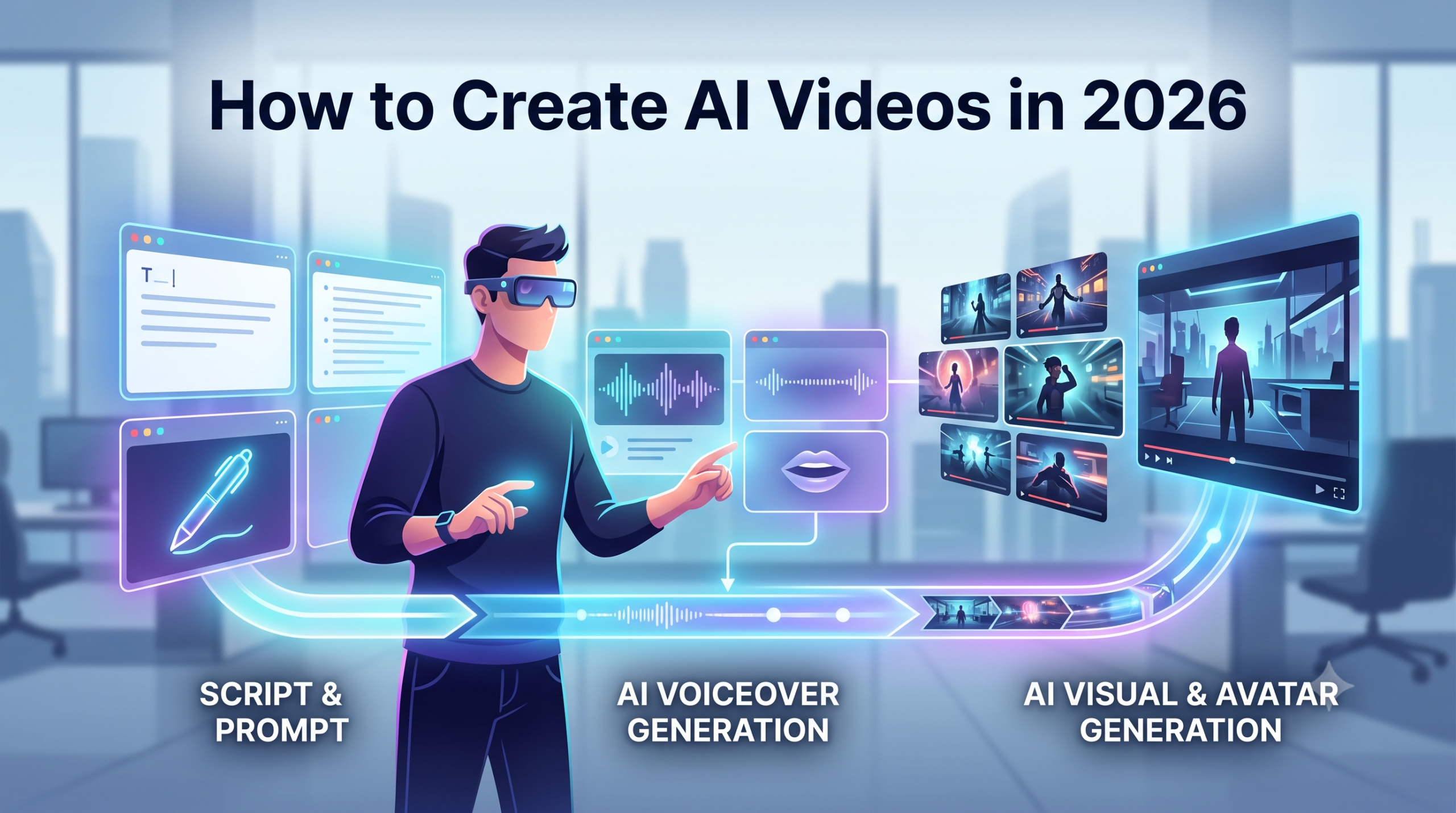
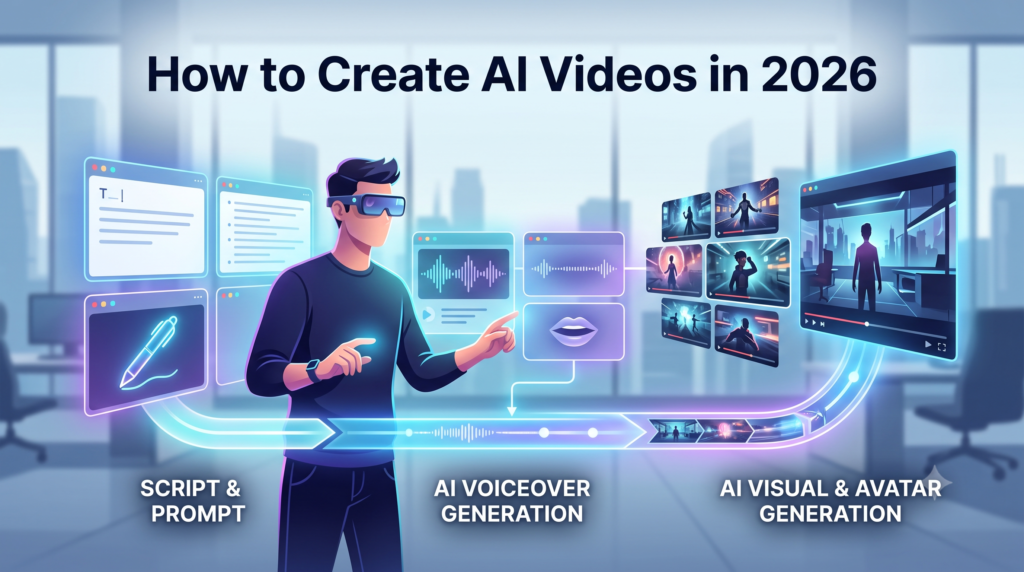
How to Create AI Videos in 2026
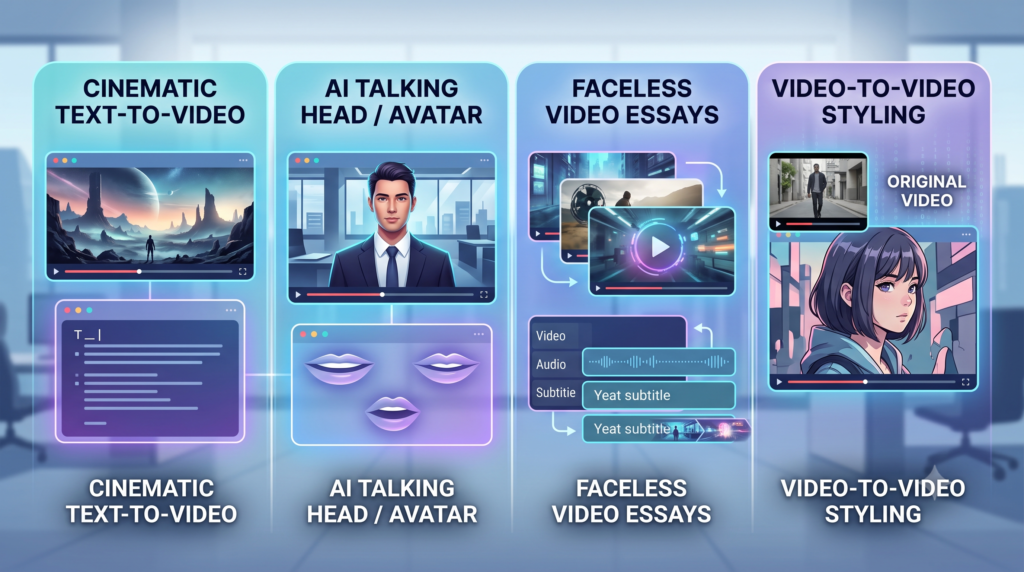
The 4 Types of AI Videos You Can Make
The 4 Types of AI Videos You Can Make
Before touching any software, clarify what kind of video fits your goal:
Text-to-Video / Cinematic: AI models turn written descriptions directly into visual scenes (great for cinematic shorts, sci-fi concepts, and B-roll).
AI Talking Head / Avatar: A hyper-realistic digital person speaks your exact script with natural mouth movements and facial expressions (perfect for tutorials, corporate training, and explainer reels).
Faceless Video Essays: A voiceover paired with auto-generated stock footage, AI visuals, motion graphics, and captions (ideal for TikTok, Instagram Reels, and YouTube Shorts).
Video-to-Video Styling: Uploading an existing real-life video and using AI filters to turn it into anime, 3D animation, or a claymation aesthetic.
Step 1: Write a Compelling Script (The Backbone)
A video with breathtaking visual effects will still fall flat if the script lacks focus.
Instead of writing everything manually or letting an AI spit out robotic fluff, use a conversational framework. Prompt tools like Claude or ChatGPT with clear guidelines:
“Write a fast-paced, engaging 60-second video script about the psychology of deep work. Include a strong 3-second hook, 3 short actionable takeaways, and a clean closing call-to-action. Keep the tone conversational, punchy, and direct.”
Pro Tip: Read the output out loud. If a sentence feels awkward or too formal to say in conversation, rewrite it in your natural voice.
Step 2: Generate the Voiceover
Next, turn your script into realistic audio. Robotic, monotone robot voices are a relic of the past—modern AI voice generators replicate natural breath pauses, intonations, and emotional weight.
Popular Tools:
ElevenLabs: The undisputed leader for natural speech, custom voice cloning, and subtle emotional cadence.
Murf.ai: Great for corporate presentations, multi-speaker dialogues, and e-learning voice tracks.
Upload your script, pick a voice profile that matches your video’s vibe (warm and friendly, bold and energetic, or deep and cinematic), and export the high-quality .mp3 or .wav file.
Step 3: Produce the Visuals
This is where the magic happens. Depending on your video style, choose the right visual generator:
Option A: Direct Text-to-Video Generators
If you need dynamic scenes, abstract visuals, or realistic environmental B-roll:
Runway (Gen-2 / Gen-3 Alpha): Excellent camera movement controls, cinematic lighting, and consistent scene rendering.
Luma Dream Machine & Pika: Fantastic for smooth motion physics, character animations, and creative scene morphs.
Sora: High-fidelity scene consistency and complex background depth.
Option B: Realistic AI Avatars
If you want a presenter without standing in front of a camera:
HeyGen: Industry standard for photo-realistic lip-syncing, multi-language translations, and custom avatar creation.
Synthesia: Great for product demos, HR onboarding, and multi-language customer support videos.
Step 4: Assemble, Edit, and Add Captions
Raw AI clips often need trimming, pacing adjustments, sound design, and text overlays to keep viewers hooked.
You can use traditional editors like CapCut, Premiere Pro, or DaVinci Resolve, or utilize all-in-one AI video assemblers:
CapCut: Excellent for auto-captions with trending animated typography, sound effects, and vertical formatting.
InVideo AI / Opus Clip: Ideal for auto-curating b-roll, generating background music, and turning long clips into short viral snippets.
Key Editing Checklist:
Trim the Dead Space: Cut out silences between voiceover lines to keep momentum high.
Add Background Audio: Low-volume ambient music adds mood—just keep voice levels clear (music at roughly -18dB to -22dB).
Use Dynamic Subtitles: More than 70% of social media users browse videos with the sound off. High-contrast, animated captions ensure your message lands.
3 Golden Rules to Avoid the “AI Slop” Trap
Keep Human Direction in the Driver’s Seat: AI generates the pieces; your taste, timing, and storytelling connect them.
Avoid Over-Complicated Prompts: Describe scene subject, lighting style, camera angle, and movement directly. (e.g., “Cinematic wide shot of a lone runner on a neon-lit Tokyo street at night, wet asphalt reflections, slow-motion 4K”).
Maintain Visual Consistency: Use consistent color palettes, lighting styles, and character descriptions across consecutive scenes so the final product feels cohesive.
Here is an SEO-friendly, comprehensive FAQ (Frequently Asked Questions) section tailored specifically for your blog post on “How to Create AI Videos”:
Frequently Asked Questions (FAQs)
1. Can I make money from AI-generated videos on YouTube and TikTok?
Yes, absolutely. Thousands of creators monetize faceless channels, explainer videos, and social media reels made with AI. However, platforms like YouTube require value-add content—purely repetitive, low-effort “spam” might get flagged. To monetize successfully, ensure your videos offer genuine entertainment, clear educational value, original human scripting, and quality editing.
2. Do I need expensive hardware or a powerful PC to make AI videos?
No. Unlike traditional 3D rendering or heavy manual 4K editing, most AI video generation tools (like Runway, Luma Dream Machine, HeyGen, and ElevenLabs) run entirely in the cloud. You only need a standard laptop, tablet, or even a smartphone with a stable internet connection.
3. Which AI tool is best for beginners to start with?
For all-in-one faceless videos:InVideo AI or CapCut (they automate scripting, stock footage selection, subtitles, and music in one dashboard).
For talking avatars/presentations:HeyGen (user-friendly interface and fast rendering).
For voiceovers:ElevenLabs (the simplest and most realistic text-to-speech platform).
4. Are AI videos completely free to create?
Most major AI video platforms offer free trials or monthly free credits (e.g., Runway, Pika, ElevenLabs, and CapCut have free starter tiers). However, for longer videos, watermark removal, commercial rights, and high-resolution exports (1080p/4K), you will eventually need affordable monthly subscriptions.
5. How do I make sure the characters look consistent across different AI scenes?
Character consistency is achieved by using:
Image-to-Video prompts: Generate a base image of your character first (using Midjourney or DALL-E) and upload it as a reference frame in tools like Runway or Luma.
Seed numbers & detailed character tags: Maintain identical prompt descriptors (e.g., clothing color, hairstyle, lighting, and art style) across every scene prompt.