How to Use Gemini: A Simple, No-Fluff Guide for Beginners
If you’ve been hearing a lot about Google Gemini lately and feel unsure about how to actually use it in your daily life, don’t worry—you’re in good company. When I first started playing around with it, I wondered: Is this just a fancy Google search, or is it something completely different?
The short answer? It’s like having a super-helpful digital assistant that actually listens, understands what you need, and gets things done fast.
Here is a simple, straightforward guide on how to get started with Google Gemini and make the most of it.
How to Use Gemini: A Simple, No-Fluff Guide for Beginners
What is Google GeminiAI, Really?
Think of Gemini as a knowledgeable partner built right into the Google ecosystem. It doesn’t just search the web for links; it actually reads, writes, summarizes, and solves problems with you in real time.
Whether you need help drafting an email, planning a trip, or understanding a complicated topic, Gemini is designed to talk to you just like a human would.
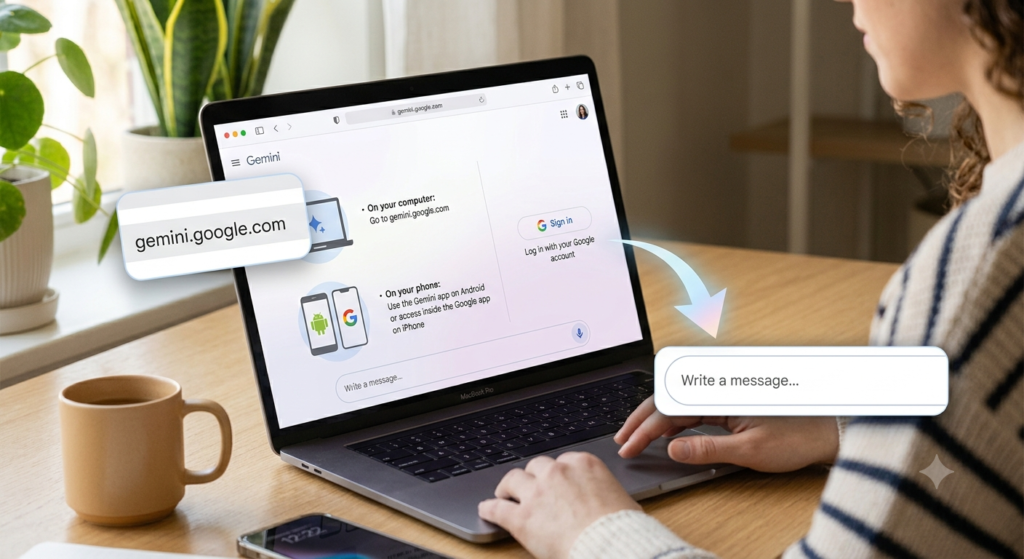
Step 1: Accessing Gemini
Getting started takes less than a minute:
On your computer: Go to gemini.google.com.
On your phone: Use the Gemini app on Android or access it directly inside the Google app on iPhone.
Sign in: Simply log in with your personal Google account.
That’s all it takes! You’ll be greeted by a clean, simple chat screen with a text box at the bottom.
Step 1: Accessing Gemini
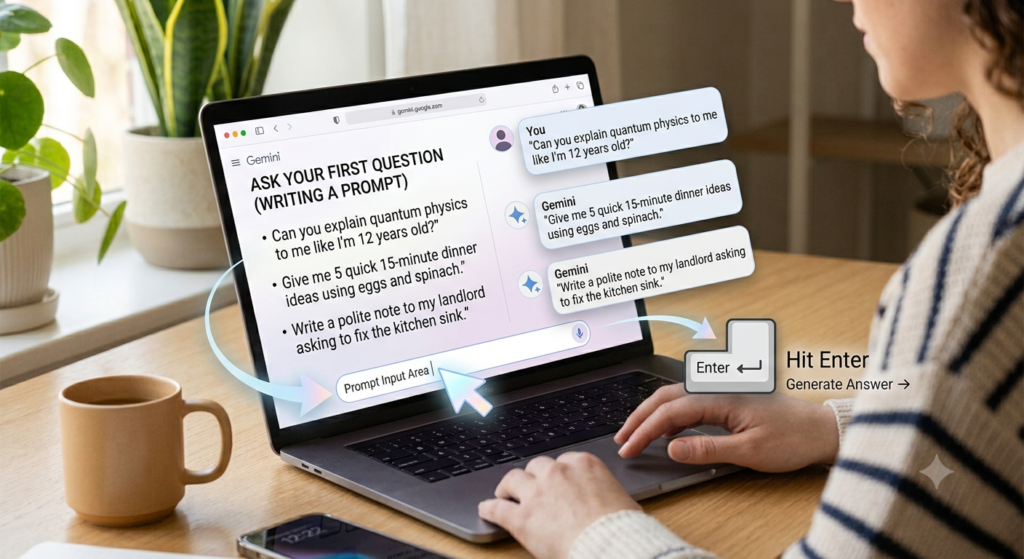
Step 2: Ask Your First Question (Writing a Prompt)
That empty text box at the bottom is where you type. Whatever you ask or tell Gemini to do is called a prompt.
You don’t need any special technical language—just type like you’re messaging a friend:
“Can you explain quantum physics to me like I’m 12 years old?”
“Give me 5 quick 15-minute dinner ideas using eggs and spinach.”
“Write a polite note to my landlord asking to fix the kitchen sink.”
Hit Enter, and Gemini will generate a helpful answer in just a few seconds.
Step 2: Ask Your First Question (Writing a Prompt)
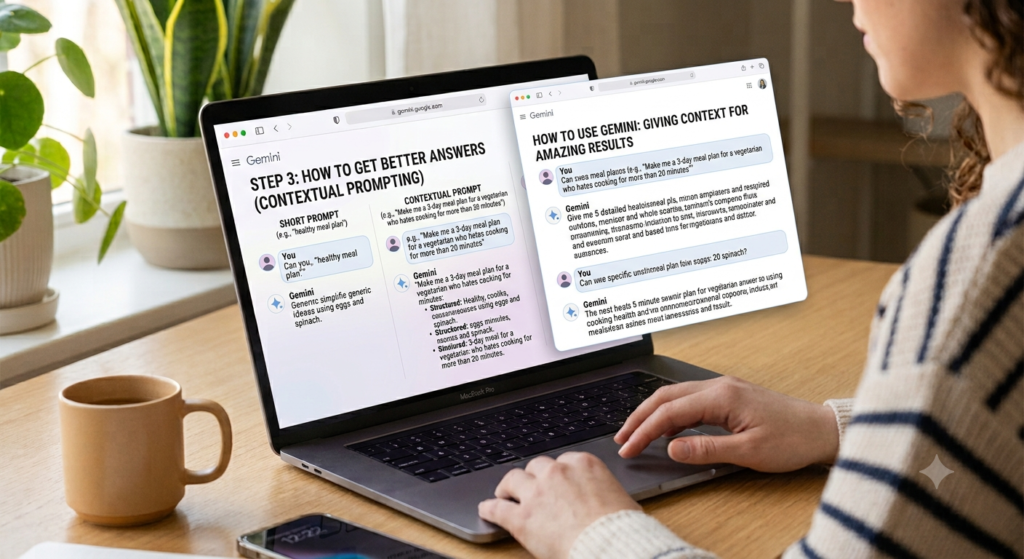
Step 3: How to Get Better Answers
The key to getting amazing results from Gemini is simple: Give it context.
Instead of typing short search terms like “healthy meal plan,” talk to it naturally and share details.
Step 3: How to Get Better Answers
Here are a few quick tips:
1. Give it a Persona
Tell Gemini who it should act like:
“Act as a friendly career coach and review my cover letter…”
“Act as an experienced travel guide and give me a 3-day itinerary for a weekend getaway…”
2. Share the Details
The more details you share, the better the reply:
“I’m planning a trip with two friends. We love outdoor activities and local street food, but we are on a tight budget. What should we do?”
Gemini
3. Keep the Conversation Going
If the first answer isn’t quite right, just reply back!
“Can you make this shorter?”
“Give me three more options, but simpler.”
“Change the tone to sound more enthusiastic.”
What Can You Use Gemini For?
Here are some practical ways people use Gemini every single day:
Writing & Editing: Brainstorming blog posts, polishing emails, or fixing tricky grammar.
Research & Summarizing: Summarizing long articles, explaining complex news topics, or breaking down dense documents.
Planning: Designing daily schedules, workout routines, or travel plans.
Creative Ideas: Generating names for projects, coming up with gift ideas, or writing fun captions.
A Few Things to Keep in Mind
While Gemini is super capable, it’s good to keep these tips in mind:
Double-check important details: Always verify key facts, dates, or technical information.
It learns from your input: Be specific about what you need so it can tailor its responses to you.
Keep sensitive info private: Don’t share passwords, personal financial details, or private keys.
Conclusion
At the end of the day, Google Gemini is here to take the heavy lifting out of your daily tasks—not to make things more complicated. It’s a tool designed to save you time, spark creative ideas, and help you get answers faster.
You don’t need any special tricks to get started. Just open up a chat, type out a simple question like you’re talking to a friend, and let Gemini do the rest!
Frequently Asked Questions (FAQs)
1. Is Google Gemini free to use?
Yes! Google offers a completely free version of Gemini that you can access with your personal Google account. It handles everyday tasks like drafting emails, writing code, summarizing articles, and answering general queries smoothly.
2. What is the difference between Gemini and ChatGPT?
While both are powerful conversational AI tools, Gemini is deeply integrated with the Google ecosystem (like Google Workspace, Docs, Gmail, and Drive). ChatGPT is developed by OpenAI. Both excel at writing, editing, and creative tasks, but Gemini works exceptionally well if you already use Google services daily.
3. Do I need to install any software to use Gemini?
No installation is required on a computer—you can simply visit gemini.google.com in your web browser. On mobile devices, you can download the official Gemini app on Android or access Gemini inside the Google app on iOS.
4. Is Gemini safe to use with personal data?
Yes, Gemini follows Google’s strict security and privacy standards. However, as a general rule with any AI tool, you should avoid sharing sensitive personal information such as passwords, financial details, or confidential passwords in prompts.
5. How can I get the best results from Google Gemini?
Be specific in your prompts! Give Gemini context, tell it what role to play (e.g., “Act as a trip advisor”), and provide details about what you need. If the first output isn’t perfect, ask it to refine, shorten, or adjust the tone in a follow-up message.
We use cookies to optimize your experience, analyze traffic, and personalize ads. Please choose whether you accept our use of non-essential cookies.
Read More
Cookies are small text files that can be used by websites to make a user\'s experience more efficient. The law states that we can store cookies on your device if they are strictly necessary for the operation of this site. For all other types of cookies we need your permission. This site uses different types of cookies. Some cookies are placed by third party services that appear on our pages.
Necessary cookies help make a website usable by enabling basic functions like page navigation and access to secure areas of the website. The website cannot function properly without these cookies.
Marketing cookies are used to track visitors across websites. The intention is to display ads that are relevant and engaging for the individual user and thereby more valuable for publishers and third party advertisers.
Preference cookies enable a website to remember information that changes the way the website behaves or looks, like your preferred language or the region that you are in.